AutoHotKeyScripts
A Set of AutoHotKey scripts to make a programmer's life easier.
Why Use Ctrl+Alt and Ctrl+Shift+Alt with Arrow Keys?
Because I constantly use Shift+Arrows to select text, and Ctrl as a modifier to select words in the text. So I decided to expand on that functionality with Alt being the AutoHotKey trigger.
Download AutoHotKey
- AutoHotKeyScripts
-
- Move Cursor Down
- Move Cursor Up
- Move Cursor Down
- Move Cursor Left
- Move Cursor Right
- Cursor Left Click
- Cursor Right Click
- Up Arrow Action
- Down Arrow Action
- Left Arrow Action
- Right Arrow Action
- F11
- F12
- Show Focused Window
- Minimize Focused Window
- Restore/Maximize Focused Window
- Close Focused Window
- Go to Previous Tab
- Go to Next Tab
- Wheel Up
- Wheel Down
- Show CapsLock Hotkeys
-
Save Highlighted Text - What it does: - TODAY'S HIGHLIGHTED DEALS - Installation Steps - TL;DR
-
Save Highlighted Text - What it does: - TODAY'S HIGHLIGHTED DEALS - Installation Steps - TL;DR
SurfacePenOverrides
Make sure to enable Surface Pen overrides in Settings -> Devices -> Pen and Windows Ink -> Allow apps to override shortcut button behavior
Undo (Ctrl + Z)
- Original Action:
- Ctrl + C
- Hit undo icon on OneNote
- After Script:
- Click eraser once
Redo (Ctrl + Y)
- Original Action:
- Ctrl + C
- Hit redo icon on OneNote
- After Script:
- Click eraser twice
CapsLockHero
Why Use Caps Lock as a modifier... because no one really uses it other than to write very angry comments online.
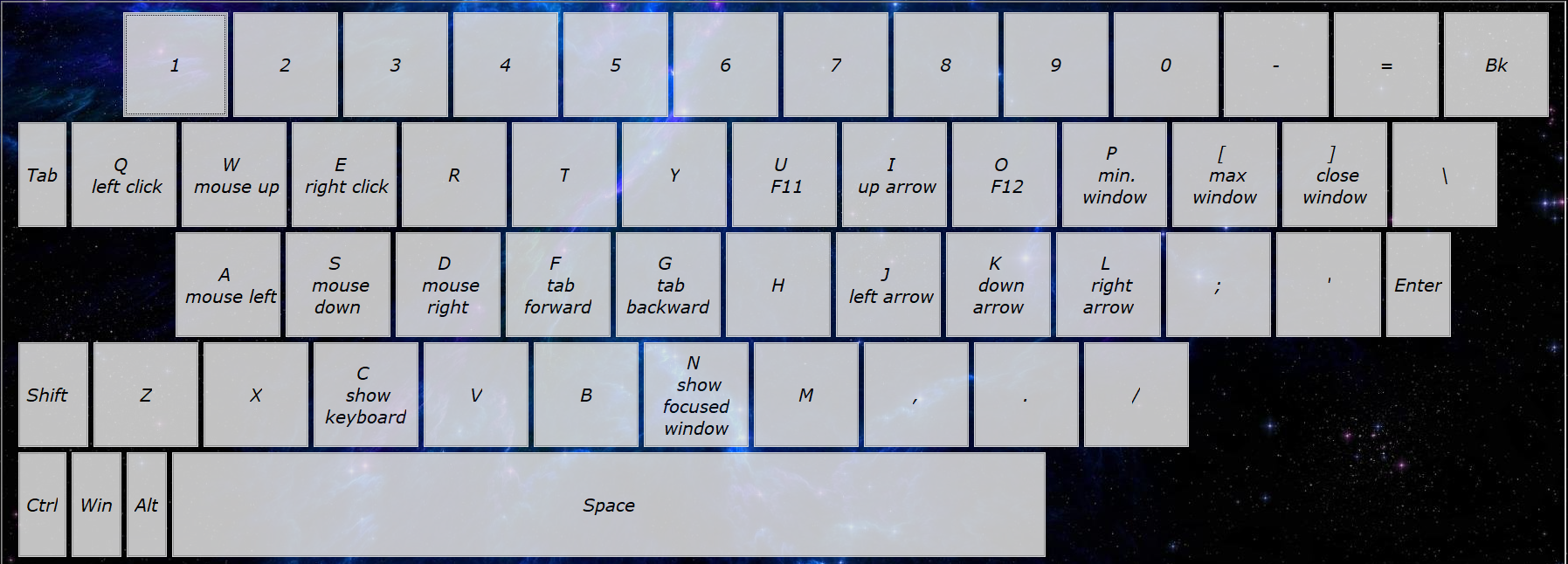
Move Cursor Down
- Original Action:
- Mouse Down
- After Script:
- Caps Lock (HOLD) + S
Move Cursor Up
- Original Action:
- Mouse Up
- After Script:
- Caps Lock (HOLD) + W
Move Cursor Down
- Original Action:
- Mouse Down
- After Script:
- Caps Lock (HOLD) + S
Move Cursor Left
- Original Action:
- Mouse Left
- After Script:
- Caps Lock (HOLD) + A
Move Cursor Right
- Original Action:
- Mouse Right
- After Script:
- Caps Lock (HOLD) + D
Cursor Left Click
- Original Action:
- Left Click
- After Script:
- Caps Lock (HOLD) + Q
Cursor Right Click
- Original Action:
- Right Click
- After Script:
- Caps Lock (HOLD) + E

Up Arrow Action
- Original Key:
- Up Arrow
- After Script:
- Caps Lock (HOLD) + I
Down Arrow Action
- Original Key:
- Down Arrow
- After Script:
- Caps Lock (HOLD) + K
Left Arrow Action
- Original Key:
- Left Arrow
- After Script:
- Caps Lock (HOLD) + J
Right Arrow Action
- Original Key:
- Right Arrow
- After Script:
- Caps Lock (HOLD) + L

F11
- Original Key:
- F11
- After Script:
- Caps Lock (HOLD) + U
F12
- Original Key:
- F12
- After Script:
- Caps Lock (HOLD) + O
Show Focused Window
- Original Key:
- None
- After Script:
- Caps Lock (HOLD) + N
Minimize Focused Window
- Original Action:
- Click on Minimize Button
- After Script:
- Caps Lock (HOLD) + P
Restore/Maximize Focused Window
- Original Action:
- Click on Maximize Button
- After Script:
- Caps Lock (HOLD) + [
Close Focused Window
- Original Action:
- Click on Close Button
- After Script:
- Caps Lock (HOLD) + ]
Go to Previous Tab
- Original Action:
- Ctrl + Shift + Tab
- After Script:
- Caps Lock (HOLD) + F
Go to Next Tab
- Original Action:
- Ctrl + Tab
- After Script:
- Caps Lock (HOLD) + G
Wheel Up
- Original Action:
- Mouse Wheel Up
- After Script:
- Caps Lock (HOLD) + R
Wheel Down
- Original Action:
- Mouse Wheel Down
- After Script:
- Caps Lock (HOLD) + V
Show CapsLock Hotkeys
- Use
- Caps Lock (HOLD) + C
- Description
- Shows Hotkeys mapped to CapsLock
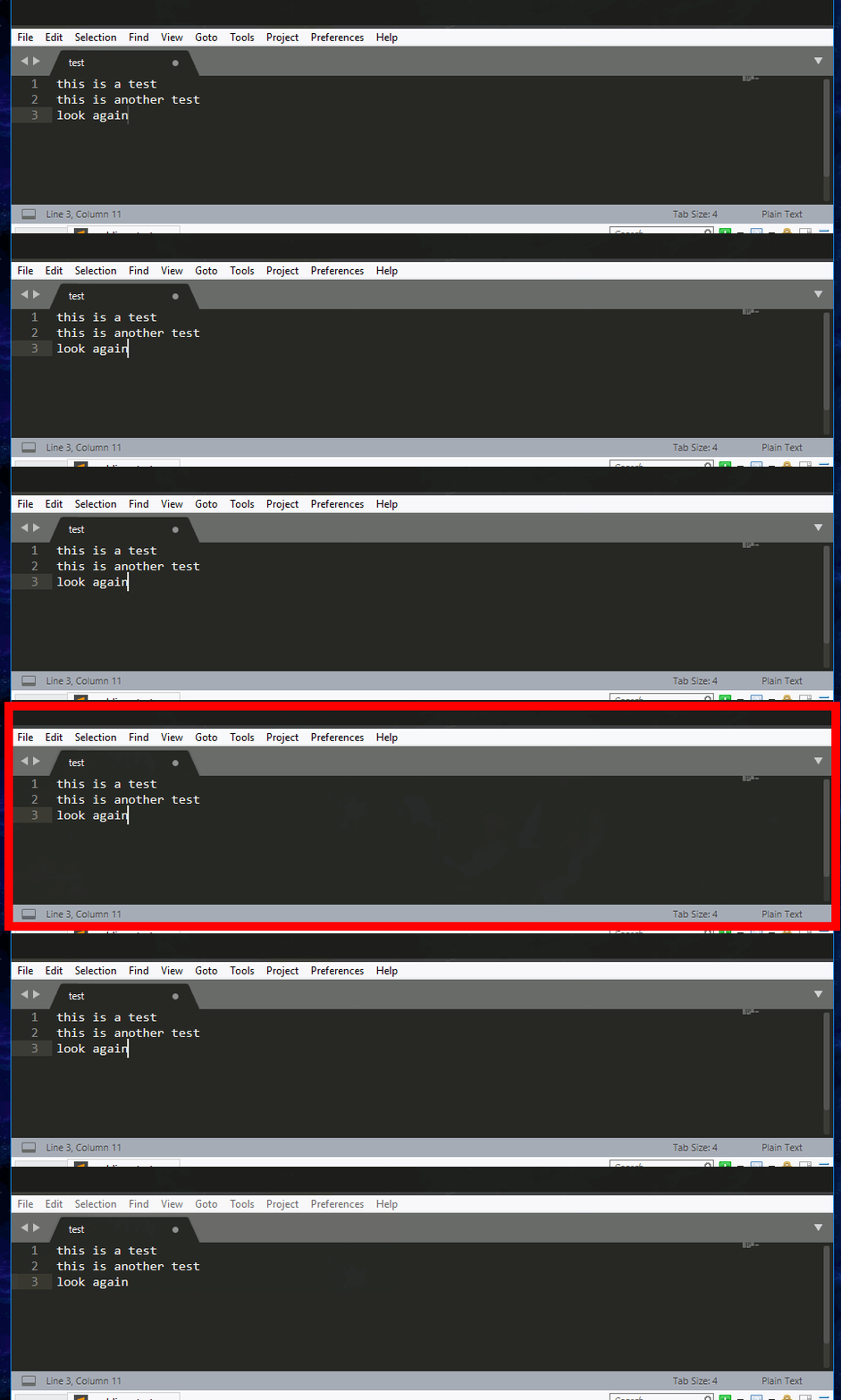
Go To End Of Line
- Original Key:
- End
- After Script:
- Ctrl+Alt+Right

Go To Beginning of Line
- Original Key:
- Home
- After Script:
- Ctrl+Alt+Left

Select Line To The Right Of Cursor
- Original Keys:
- Shift+End
- After Script:
- Ctrl+Shift+Alt+Right

Select Line To The Left Of Cursor
- Original Keys:
- Shift+Home
- After Script:
- Ctrl+Shift+Alt+Left

Select To The End From Cursor
- Original Keys:
- Shift+End
- After Script:
- Ctrl+Shift+Alt+Down
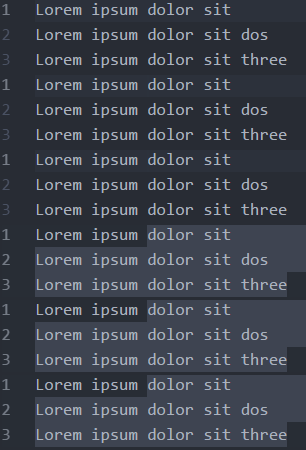
Select To The Beginning From Cursor
- Original Keys:
- Shift+Home
- After Script:
- Ctrl+Shift+Alt+Up
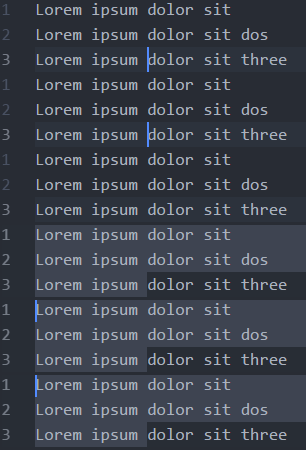
Delete Word
- Original Key:
- Ctrl+Delete
- After Script:
- Ctrl+Shift+Backspace

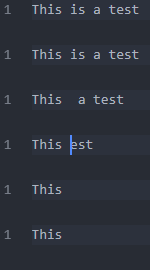
Delete Character
- Original Key:
- Delete
- After Script:
- Shift+Backspace
Wrap Text in Quotes:
- Use:
- Select Text, then Ctrl+Shift+'

Page Down
- Original Key:
- Page Down
- After Script:
- Ctrl+Down

Page Up
- Original Key:
- Page Up
- After Script:
- Ctrl+Up

Search Anything
- Original Steps:
- Copy Text
- Go to Google
- Paste Text
- Search
- After Script:
- Ctrl+Shift+Alt+A
Inspired by lifehacker
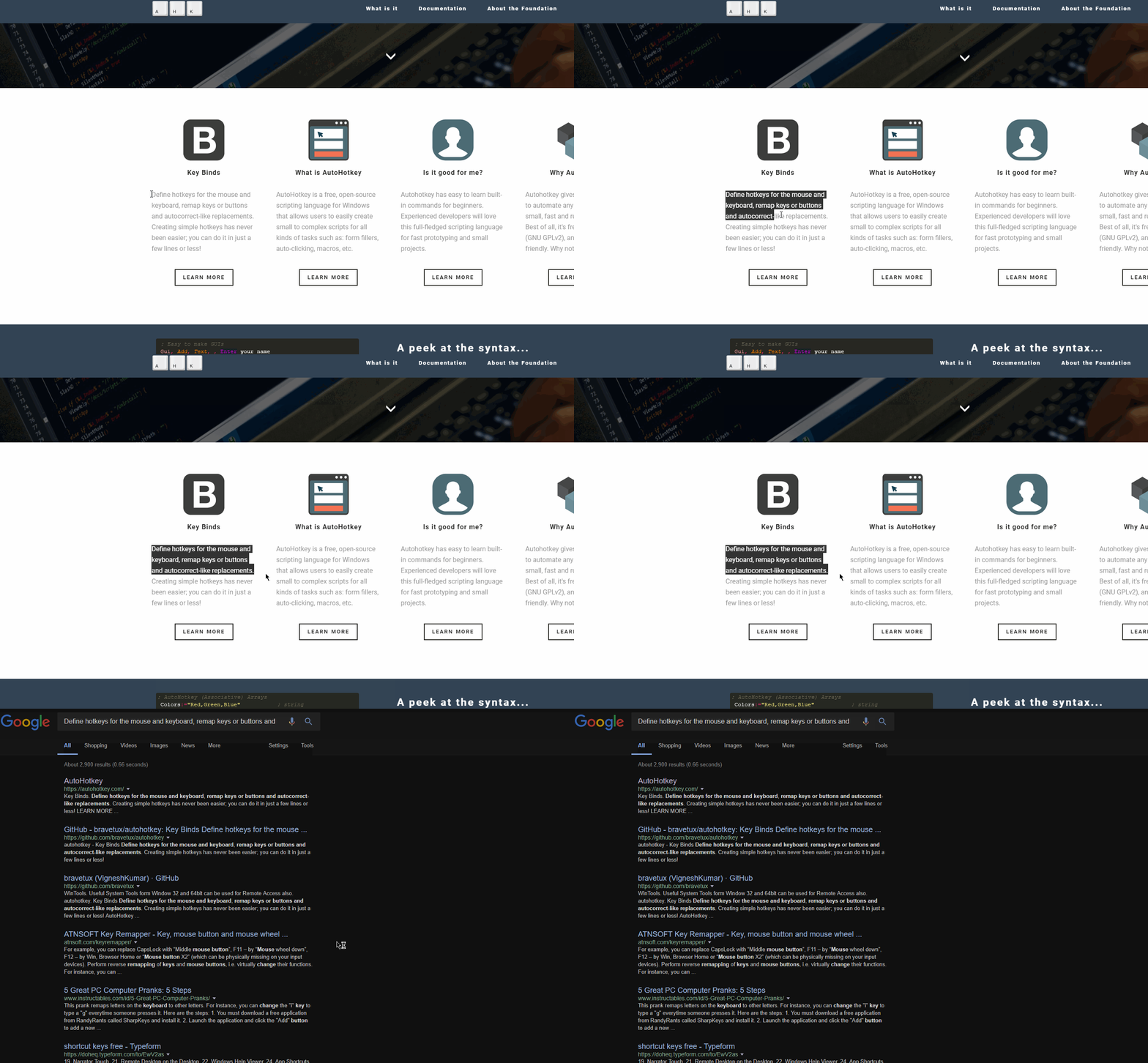
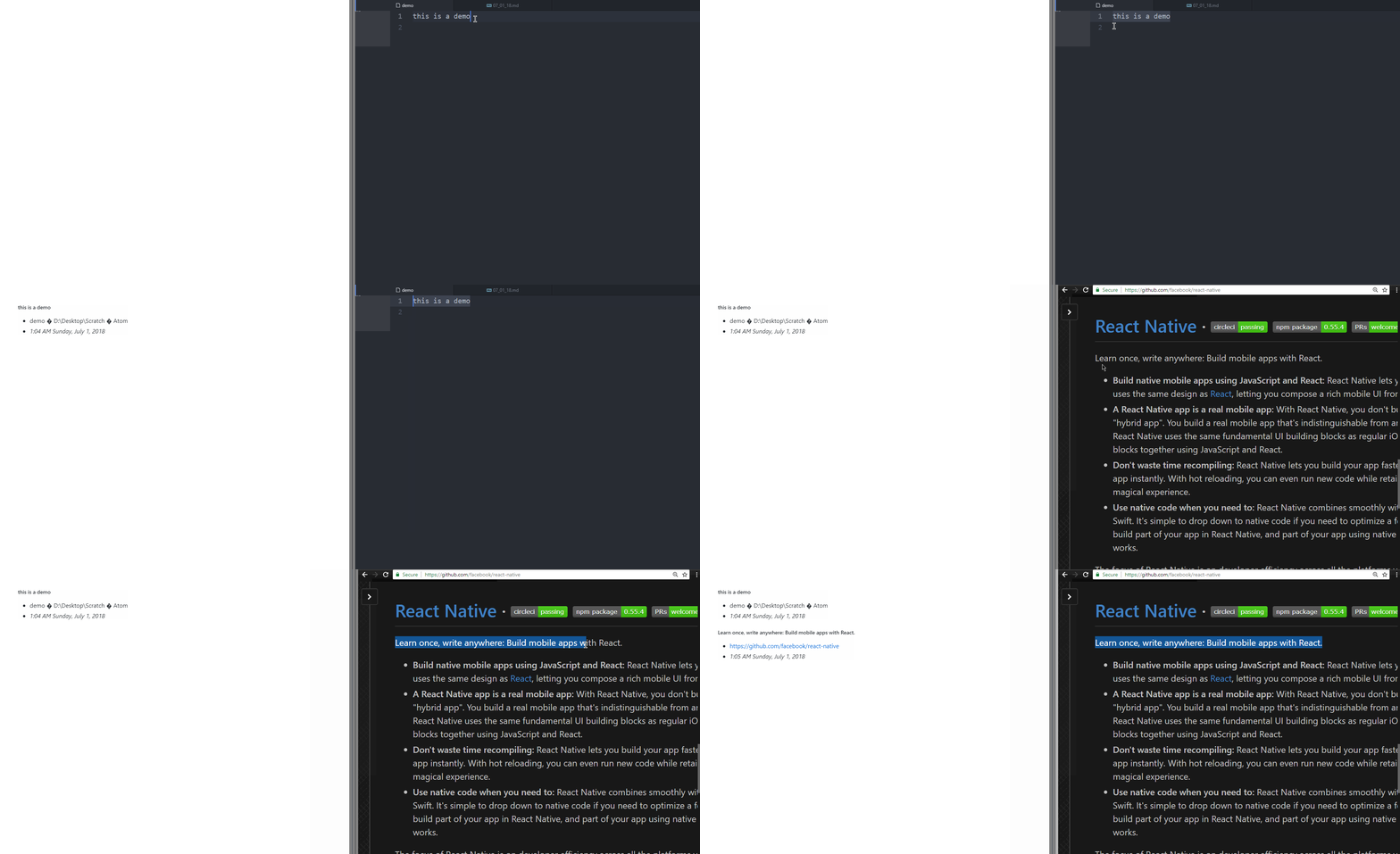
Save Highlighted Text
What it does:
Saves the highlited text to a file, and it saves it with markdown syntax to a .md file
Example:
TODAY'S HIGHLIGHTED DEALS
- Steam
- 12:35 AM Sunday, July 1, 2018
##### TODAY'S HIGHLIGHTED DEALS
* Steam
* *12:35 AM Sunday, July 1, 2018*
The header cotains the highlighted text, then the name of the window where it got it from, then a timestamp.
- Can get Active URLs from Web browser
- Support for Chrome, Edge, IE, Opera, and Firefox
- Attach timestamp to information
- All the highlights of the day are saved on one file
- A new file is generated every day
Installation Steps
Highlights will be located on the Desktop under a folder named "Highlights" Uses source code from md-page to convert markdown to html
TL;DR
- Original Steps:
- Too Many
- After Script:
- Ctrl+Shift+,